UE5 Moving Platform Blueprint
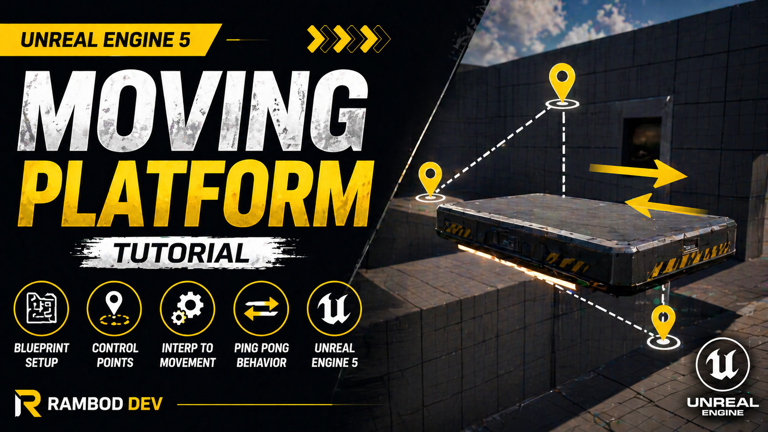
Moving platforms are one of the most common interactive level design elements in games. You can use them for elevators, platforming sections, traps, timed puzzles, moving bridges, patrol-style objects, and dynamic environment pieces.
In this Unreal Engine 5 tutorial, you will create a simple moving platform using only Blueprints. The system uses an Actor Blueprint, a Static Mesh component, and Unreal Engine’s built-in InterpToMovement component to move the platform between control points automatically.
Watch the full video tutorial: Unreal Engine 5 Moving Platform Tutorial
What You Will Build
By the end of this guide, you will have a reusable moving platform Blueprint that can be placed directly into any level. The platform will move between multiple points and return back using Ping Pong behavior.
The final system includes:
- A reusable
BP_PlatformActor Blueprint - A Static Mesh component used as the visible platform
- An
InterpToMovementcomponent for automatic movement - Control points that define the platform path
- Ping Pong behavior so the platform moves back and forth
- A simple setup that requires no Event Tick and no custom movement code
This is a beginner friendly setup, but the concept is useful even in larger projects. The important idea is that you are using a dedicated movement component instead of manually updating the actor location every frame.
Why Use InterpToMovement?
There are several ways to move an object in Unreal Engine. You could use Timeline nodes, Event Tick, Set Actor Location, or a movement component. For this tutorial, InterpToMovement is the fastest and cleanest option because it is designed specifically for moving an actor along a set of control points.
The benefit is simple: you define points, choose movement behavior, and Unreal handles the interpolation for you.
Compared to a manual Timeline setup, InterpToMovement is quicker for basic path movement. Compared to Event Tick movement, it keeps your Blueprint cleaner and avoids unnecessary per-frame logic.
Use InterpToMovement when you need:
- A platform moving between fixed points
- A simple elevator path
- A looping obstacle
- A basic patrol movement for non-character actors
- A quick prototype without writing custom interpolation logic
Step One: Create the Platform Blueprint
Start by creating an Actor Blueprint. A moving platform is a world object, so Actor is the correct parent class.
- Open the Content Drawer.
- Right click in your desired folder.
- Select Blueprint Class.
- Choose Actor.
- Name the Blueprint
BP_Platform. - Open the Blueprint.
- Compile and save once before continuing.
Compiling early is a small habit, but it helps Unreal initialize the Blueprint cleanly before you start adding components and settings.
Step Two: Add the Platform Mesh
Now add the visible platform surface.
- In the Components panel, click Add.
- Search for Static Mesh.
- Add it to the Blueprint.
- Name it
PlatformMesh. - In the Details panel, assign a mesh such as
Floor_400x400from Starter Content.
You can use any mesh here. A cube, floor tile, bridge piece, elevator mesh, or custom platform all work. The mesh is only the visual representation of the platform.
If your platform should carry the player, make sure the mesh collision is valid. For simple platform meshes from Starter Content, collision is usually already configured. If you use a custom mesh, open the Static Mesh Editor and confirm that collision exists.
Step Three: Add the InterpToMovement Component
The InterpToMovement component is what actually moves the platform.
- Inside
BP_Platform, click Add Component. - Search for InterpToMovement.
- Add it to the Blueprint.
- Select the new component in the Components panel.
This component moves the owning Actor between a list of control points. You do not need to use Event Tick. You do not need to manually calculate direction. You define the points, and the component handles the movement path.
This is why the method is so fast for beginners. It gives you moving level geometry with very little Blueprint logic.
Step Four: Add Control Points
Control points define the movement path. Each point is a local offset from the platform’s starting position.
Select the InterpToMovement component and find its Control Points section in the Details panel. Add the first point:
Point 0: X = 0, Y = 0, Z = 0This is the starting position of the platform.
Add a second point:
Point 1: X = 200, Y = 0, Z = 0This moves the platform 200 Unreal units along the X axis. Since Unreal uses centimeters by default, 200 units equals about two meters.
To make the path more interesting, add a third point:
Point 2: X = 200, Y = 0, Z = 300This makes the platform move forward and then upward. That turns the platform into a simple elevator style path instead of a flat left to right platform.
You can customize these values based on your level. For example:
- Change X to move forward or backward.
- Change Y to move sideways.
- Change Z to move up or down.
Step Five: Set Behavior to Ping Pong
By default, the movement behavior may not give the exact back and forth result you want. For a moving platform, the most useful setting is usually Ping Pong.
Select the InterpToMovement component and set:
Behavior Type = Ping PongPing Pong means the platform moves through the control points, then reverses and travels back through them. This is perfect for classic moving platforms, elevators, and repeating obstacles.
Without Ping Pong, the platform may stop at the final point or loop in a way that does not feel right for your gameplay. For beginner platform movement, Ping Pong is usually the correct choice.
Step Six: Place the Platform in the Level
Now test the platform inside your map.
- Compile and save
BP_Platform. - Open your level.
- Drag
BP_Platforminto the scene. - Position it where you want the movement to begin.
- Press Play.
The platform should start moving automatically between the control points you defined. If you set the Behavior Type to Ping Pong, it should move forward through the path and then return.
Understanding Local Control Points
One detail beginners often miss is that the control points are relative to the platform’s starting position, not absolute world locations.
For example, if your platform is placed at world location:
X = 1000, Y = 500, Z = 200And your control point is:
X = 200, Y = 0, Z = 0The platform moves 200 units from its own starting location. It does not move to world position X 200. This is good because it makes the Blueprint reusable. You can place the same platform anywhere in the level, and it will move relative to its placed position.
Common Problems and Fixes
The Platform Does Not Move
Make sure the InterpToMovement component exists and has at least two control points. If there is only one point, there is nowhere for the platform to move.
The Platform Moves Once and Stops
Check the Behavior Type. Set it to Ping Pong if you want the platform to move back and forth continuously.
The Platform Moves in the Wrong Direction
Check your control point values. X, Y, and Z define movement direction. If the platform moves sideways instead of forward, adjust the axis values.
The Player Falls Through the Platform
Check the Static Mesh collision. Open the mesh and confirm it has collision. Also make sure the collision preset blocks the player pawn.
The Platform Feels Too Fast or Too Slow
Adjust the movement duration or speed settings on the InterpToMovement component. The exact setting name can vary by engine version, but the component includes timing controls that affect how quickly it travels through the path.
The Platform Path Is Too Simple
Add more control points. You can create a path that moves forward, rises upward, shifts sideways, and returns. Just keep it readable. Too many points can make a beginner setup harder to debug.
How to Improve This Moving Platform
The tutorial version is intentionally simple. It is good for learning, but you can expand it into a more flexible gameplay system.
Add an Activation Trigger
Instead of moving automatically when the game starts, add a Box Collision and trigger movement only when the player steps onto the platform or presses an interaction key.
Add a Start Delay
A delay before movement can make the platform feel more deliberate. This is useful for elevators, traps, or puzzle platforms.
Add Sound Effects
Use looping mechanical sounds while the platform moves, and impact or stop sounds when it reaches a control point.
Add Editor Editable Variables
Expose speed, wait time, and movement direction as editable variables. This lets you tune each platform instance from the Details panel without opening the Blueprint.
Add Visual Debug Helpers
You can add Arrow components or small Sphere components to visualize where the platform will move. This makes level design much easier.
Use Timelines for Custom Easing
If you need exact control over acceleration, deceleration, or custom easing curves, a Timeline based platform system may be better than InterpToMovement. InterpToMovement is faster to set up, but Timelines give more artistic control.
When to Use This System
This moving platform setup is useful for:
- Platformer levels
- Elevators
- Moving bridges
- Timed obstacles
- Simple traps
- Industrial simulation objects
- Training environments
- Puzzle mechanics
- Prototype movement paths
For simple moving objects, this system is enough. For complex cinematic movement, spline paths or Timeline driven systems may be better.
Beginner Version vs Production Version
The beginner version uses:
- Actor Blueprint
- Static Mesh component
- InterpToMovement
- Control points
- Ping Pong behavior
A stronger production version may include:
- Editable speed variables
- Activation and deactivation logic
- Wait time at each point
- Sound and VFX
- Safe collision handling for carried players
- Replication support for multiplayer
- Debug visualization for designers
The basic setup is not bad. It is exactly the right first step. But if this platform becomes part of real gameplay, add control and polish instead of leaving it as a raw auto-moving object.
Example Setup
Here is the simple configuration used in the tutorial:
Blueprint:
BP_Platform

Components:
Static Mesh
InterpToMovement

Control Points:
Point 0 = 0, 0, 0
Point 1 = 200, 0, 0
Point 2 = 200, 0, 300

Behavior:
Ping Pong
This creates a platform that starts at its placed location, moves along the X axis, rises upward, and then returns through the same path.
Chapters
- 0:00 Introduction
- 0:07 Setting Up the Blueprint
- 0:28 Adding the Static Mesh
- 0:46 Using InterpToMovement
- 0:53 Adding Control Points
- 1:19 Changing Behavior to Ping Pong
- 1:26 Testing the Moving Platform
Conclusion
You now have a working moving platform in Unreal Engine 5 using Blueprints. The setup is simple, fast, and practical. By combining an Actor Blueprint, Static Mesh component, InterpToMovement, control points, and Ping Pong behavior, you can create interactive movement paths without writing custom code.
This is a strong beginner mechanic because it introduces reusable Blueprint Actors and component based movement. Once you understand this, you can build more advanced platform systems with activation triggers, speed controls, wait times, sounds, and designer friendly variables.
Watch the full tutorial: Unreal Engine 5 Moving Platform Tutorial
More Unreal Engine tutorials: rambod.net
Frequently Asked Questions
Can I use this moving platform in Unreal Engine 5.5, 5.6, or 5.7?
Yes. This Blueprint workflow is simple and should work across modern Unreal Engine 5 versions.
Do I need C++ for this moving platform?
No. This tutorial uses Blueprints only. The InterpToMovement component handles the movement without custom C++ code.
Can the platform move vertically like an elevator?
Yes. Add or modify control points with a Z value. For example, a point with Z = 300 moves the platform upward.
Why does the platform move relative to where I placed it?
InterpToMovement control points are relative offsets from the actor’s starting position. This makes the Blueprint reusable anywhere in the level.
Can I make the platform wait at each point?
Yes, but for more control over wait times and easing, you may want to build a Timeline based platform or extend the movement logic with custom Blueprint events.
Can this work for multiplayer?
The basic idea can work, but multiplayer needs replication handling. For networked games, the platform movement should be controlled by the server and replicated properly to clients.
Should I use InterpToMovement or Timeline?
Use InterpToMovement for fast point based movement. Use Timelines when you need custom curves, exact timing control, easing, or more complex animation behavior.

Related Tutorials
More lessons connected by category, tags, engine version, or implementation type.



