High Res Screenshots in UE5
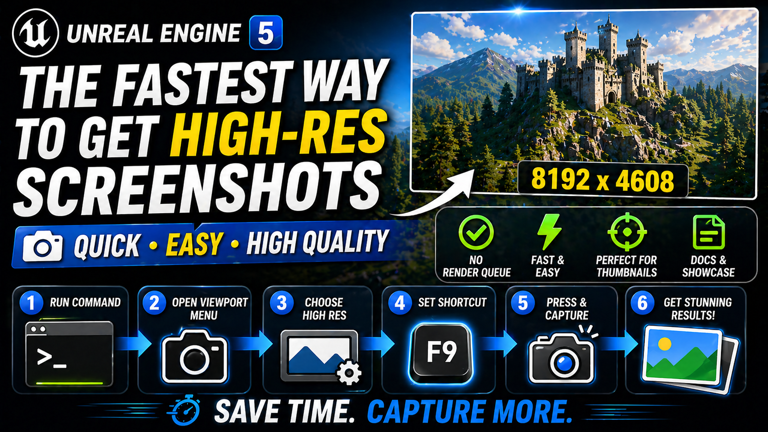
In this quick Unreal Engine tutorial, you will learn how to take clean, high-resolution screenshots directly from the editor without using Movie Render Queue, Path Tracing, or any complex rendering setup.
This workflow is useful when you need fast screenshots for thumbnails, tutorial documentation, portfolio images, store page previews, bug reports, development notes, or social media posts. Instead of rendering a full cinematic sequence, you can capture a sharp still image from your current viewport in seconds.
The main command we use is HighResShot. It is built into Unreal Engine and allows you to capture screenshots at a higher resolution than your current viewport by using a multiplier.
Watch the full video tutorial: The Fastest Way to Get High-Res Screenshots in Unreal Engine 5
Subscribe for more Unreal Engine tutorials: Rambod YouTube Channel
What You Will Learn
By the end of this guide, you will understand three practical ways to capture high-resolution screenshots in Unreal Engine.
- How to use the HighResShot console command
- How screenshot multipliers affect final image resolution
- Where Unreal Engine saves captured screenshots
- How to open the High Resolution Screenshot tool from the viewport menu
- How to bind a custom keyboard shortcut for faster access
- When this workflow is better than Movie Render Queue
- How to avoid oversized captures that waste memory or crash the editor
Why Use High-Resolution Screenshots?
During game development, you often need quick images from your project. Maybe you want to show a mechanic to your team, create a YouTube thumbnail, document a lighting setup, compare level design changes, or post progress online.
The slow way is to set up a render pipeline, configure cameras, open Movie Render Queue, adjust output settings, and wait. That is useful for trailers and final cinematic shots, but it is overkill for simple static captures.
The faster way is to use Unreal Engine’s built-in screenshot tools. You can capture the current viewport instantly, and with the HighResShot multiplier, the final image can be much sharper than your actual screen resolution.
This is especially useful for:
- YouTube thumbnails
- Portfolio screenshots
- Website tutorial images
- Game development blogs
- Steam page screenshots
- Documentation and bug reports
- Before and after comparisons
- Lighting and material previews
Method One: Use the HighResShot Console Command
The fastest method is the console command. You do not need to open any panel or configure a render job. You just type a command and Unreal captures the screenshot.
Open the console using the backtick key on your keyboard. This key is usually located under Escape on many keyboards.
HighResShot 2The number after the command is the resolution multiplier.
- HighResShot 1 captures at the current viewport resolution.
- HighResShot 2 captures at twice the viewport resolution.
- HighResShot 3 captures at three times the viewport resolution.
- HighResShot 4 captures at four times the viewport resolution.
For example, if your viewport is running at 1920 by 1080 and you use:
HighResShot 2Unreal will capture roughly a 3840 by 2160 image, which is close to a 4K screenshot.
This makes HighResShot 2 one of the best practical defaults. It gives you a much sharper image without creating a file that is absurdly large.
Understanding the Multiplier
The multiplier scales the screenshot based on the active viewport size. It does not magically improve texture quality or add cinematic rendering. It simply captures the scene at a larger output resolution.
That means your final image can look sharper because edges, UI, geometry silhouettes, and small details get more pixels.
A simple example:
Viewport resolution: 1920 x 1080

HighResShot 1:
1920 x 1080

HighResShot 2:
3840 x 2160

HighResShot 3:
5760 x 3240

HighResShot 4:
7680 x 4320
Be careful with very high values. A multiplier of 4 or higher can create extremely large images and may use a lot of memory. If your scene is already heavy, Unreal may slow down or become unstable.
For most tutorial screenshots, thumbnails, and documentation, HighResShot 2 or HighResShot 3 is usually enough.
Where Screenshots Are Saved
After running the command, Unreal Engine saves the screenshot inside your project’s Saved folder.
On Windows, the path is usually similar to:
YourProject/Saved/Screenshots/Windows/On macOS or Linux, the platform folder name will be different. The structure is still inside:
YourProject/Saved/Screenshots/If you cannot find the screenshot, check the Output Log after capturing. Unreal usually prints the save location there.
Method Two: Use the Viewport High Resolution Screenshot Tool
If you prefer a visual interface instead of typing commands, Unreal Engine also includes a viewport screenshot tool.
In the viewport, click the small dropdown arrow near the Perspective menu. Scroll through the menu and look for:
High Resolution ScreenshotWhen you open it, Unreal shows a screenshot panel with extra options.
This tool is useful when you want more control than the console command provides.
- You can adjust the screenshot size multiplier.
- You can capture a specific region.
- You can preview the capture area.
- You can use the tool without remembering console commands.
For beginners, this is often easier because the settings are visible in one place.
Console Command vs Viewport Tool
Both methods are valid. The better choice depends on how you work.
| Method | Best For |
|---|---|
| HighResShot command | Fast repeated captures with minimal setup |
| Viewport screenshot panel | More control, capture region, and visual setup |
If you are making tutorial content and need many screenshots quickly, the console command is faster. If you need a specific crop or want to inspect settings, the viewport tool is better.
Method Three: Bind a Custom Shortcut
If you use high-resolution screenshots often, opening menus every time becomes annoying. A better workflow is to bind the screenshot tool to a custom shortcut.
Open:
Edit → Editor PreferencesIn the search bar, type:
High Resolution ScreenshotLook under the keyboard shortcuts section and assign a key that makes sense for your workflow.
After this, you can open the high-resolution screenshot panel instantly with your shortcut instead of digging through the viewport menu.
This is a small workflow improvement, but if you create tutorials, thumbnails, or documentation often, it saves a lot of time.
Best Screenshot Settings for Most Users
For normal work, do not overcomplicate it. Use practical values.
Quick documentation:
HighResShot 1

YouTube thumbnails:
HighResShot 2

Portfolio screenshots:
HighResShot 2 or HighResShot 3

Very detailed stills:
HighResShot 4, only if your system can handle it
Higher is not always better. A giant screenshot can create more work because you may need to resize it anyway for YouTube, websites, or social media.
For example, YouTube thumbnails are displayed much smaller than 4K in most places. Capturing at 4K and then resizing gives you a clean result. Capturing at 8K may be unnecessary unless you need extreme crop flexibility.
When This Method Is Better Than Movie Render Queue
Movie Render Queue is powerful, but it is not always the right tool.
Use HighResShot when you need:
- A quick still image
- A screenshot from the editor viewport
- A fast thumbnail capture
- A documentation image
- A progress screenshot
- A bug report image
Use Movie Render Queue when you need:
- Cinematic rendering
- Final trailer shots
- Camera sequence output
- Anti-aliasing samples
- Path tracing output
- Frame sequences
HighResShot is about speed. Movie Render Queue is about final render control.
How to Prepare a Better Screenshot
The screenshot tool only captures what you give it. If the scene looks messy, the screenshot will look messy too. Before capturing, take a few seconds to clean the frame.
- Hide editor selection outlines if they distract from the shot.
- Frame the subject clearly in the viewport.
- Use good lighting and avoid flat angles.
- Move the camera slightly lower for more cinematic depth.
- Check that debug lines, collision previews, and editor helpers are not visible unless needed.
- Use a higher multiplier only after the composition looks good.
Do not waste time capturing a high-resolution version of a bad composition. First make the shot readable, then capture it.
Using Screenshots for YouTube Thumbnails
This method is especially useful for Unreal Engine YouTube thumbnails. You can capture a clean scene from the editor, bring it into Photoshop, Affinity Photo, Canva, or another design tool, then add bold text and visual emphasis.
For thumbnails, use:
HighResShot 2This usually gives enough resolution for cropping, sharpening, and editing. Then export your final thumbnail at YouTube’s recommended thumbnail size.
Keep in mind that the screenshot is only the base. The final thumbnail still needs strong contrast, readable subject matter, and clear text.
Common Problem: Console Does Not Open
If the console does not open with the backtick key, your keyboard layout may use a different key. You can check or change console key bindings inside Unreal Engine input settings or editor preferences.
You can also use the viewport menu method instead. It avoids console access completely.
Common Problem: Screenshot Is Too Large
If the screenshot takes too long or Unreal freezes, your multiplier is probably too high for the current scene and hardware.
Try lowering it:
HighResShot 2Instead of:
HighResShot 4Heavy scenes with Nanite, Lumen, high texture memory, dense foliage, or lots of post-processing can become expensive when captured at very high resolution.
Common Problem: Screenshot Looks Different Than Expected
The screenshot captures the viewport state, so visual differences can happen if your editor viewport is not showing the same settings you expect.
Check:
- Viewport mode is set to Lit.
- Game View is enabled if you want a cleaner capture.
- Post Process settings are active.
- Scalability settings are set correctly.
- Editor debug overlays are hidden if not needed.
For cleaner screenshots, try enabling Game View before capturing.
Recommended Workflow
For quick Unreal Engine tutorial screenshots, use this simple workflow:
Frame the shot in the viewport.
Switch to Game View if needed.
Open console.
Run HighResShot 2.
Open Saved/Screenshots.
Use the image in your article, thumbnail, or documentation.
For more controlled screenshots:
Open the viewport dropdown.
Choose High Resolution Screenshot.
Set multiplier.
Adjust capture region if needed.
Click Capture.
For frequent use:
Bind High Resolution Screenshot to a keyboard shortcut.
Use the shortcut whenever you need a capture.
Best Practices
- Use HighResShot 2 as your default starting point.
- Only increase the multiplier when you really need more detail.
- Keep composition clean before capturing.
- Use Game View for cleaner screenshots without editor overlays.
- Store final screenshots in a separate folder for your website or video assets.
- Do not rely on huge screenshots to fix weak lighting or poor framing.
- Use Movie Render Queue only when you need cinematic render quality, not quick viewport captures.
Conclusion
High-resolution screenshots in Unreal Engine are much easier than many beginners think. You do not need Movie Render Queue for every still image, and you do not need Path Tracing just to capture a clean viewport shot.
For the fastest workflow, use:
HighResShot 2For more control, use the High Resolution Screenshot tool from the viewport menu. For frequent use, bind it to a custom shortcut.
This is one of those small Unreal Engine workflow tricks that saves time immediately, especially if you create tutorials, thumbnails, documentation, portfolio shots, or progress updates.
Watch the full tutorial: The Fastest Way to Get High-Res Screenshots in Unreal Engine 5
More Unreal Engine tutorials: rambod.net
Subscribe for more: Rambod YouTube Channel
Frequently Asked Questions
What does HighResShot 2 mean?
It means Unreal captures the viewport at two times the current viewport resolution. If the viewport is 1920 by 1080, the screenshot becomes roughly 3840 by 2160.
Is HighResShot the same as Movie Render Queue?
No. HighResShot is a fast viewport screenshot tool. Movie Render Queue is for higher quality cinematic output, frame sequences, and advanced render settings.
What multiplier should I use?
Start with HighResShot 2. It is usually enough for documentation, thumbnails, and portfolio images. Use higher values only if your system can handle it and you need extra resolution.
Where does Unreal save screenshots?
Screenshots are saved inside your project folder under Saved/Screenshots. The final platform folder depends on your operating system.
Can I use this for YouTube thumbnails?
Yes. HighResShot is great for capturing base images for thumbnails. You can then edit the image in your design software and add text, arrows, contrast, or branding.
Why is my screenshot too heavy?
Your multiplier may be too high. Lower it to 2 or 3. Very high multipliers can create huge image files and consume a lot of memory.
Can I bind High Resolution Screenshot to a shortcut?
Yes. Open Editor Preferences, search for High Resolution Screenshot under keyboard shortcuts, and assign a custom key.

Related Tutorials
More lessons connected by category, tags, engine version, or implementation type.



